
Create your menu, print one QR code, and update items whenever service changes. Guests always see the current menu on their phone.
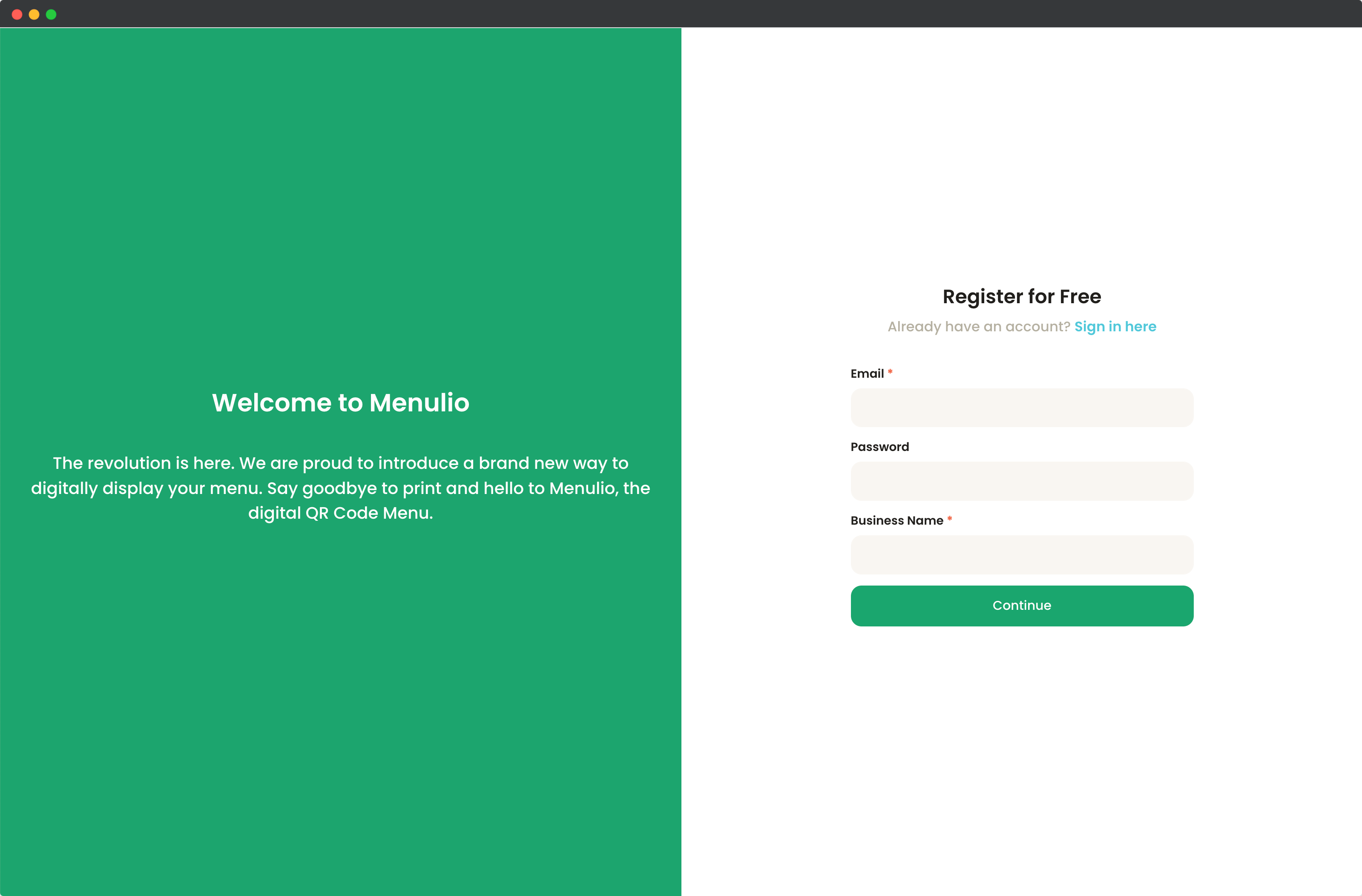
Start with an email, password, and business name. Menulio gives you a dashboard where you can build the menu before printing any QR code.
Create your accountAdd categories, item names, descriptions, prices, photos, ingredients, nutrition details, and price variants. You can also add translations for guests who prefer another language.
See the menu builder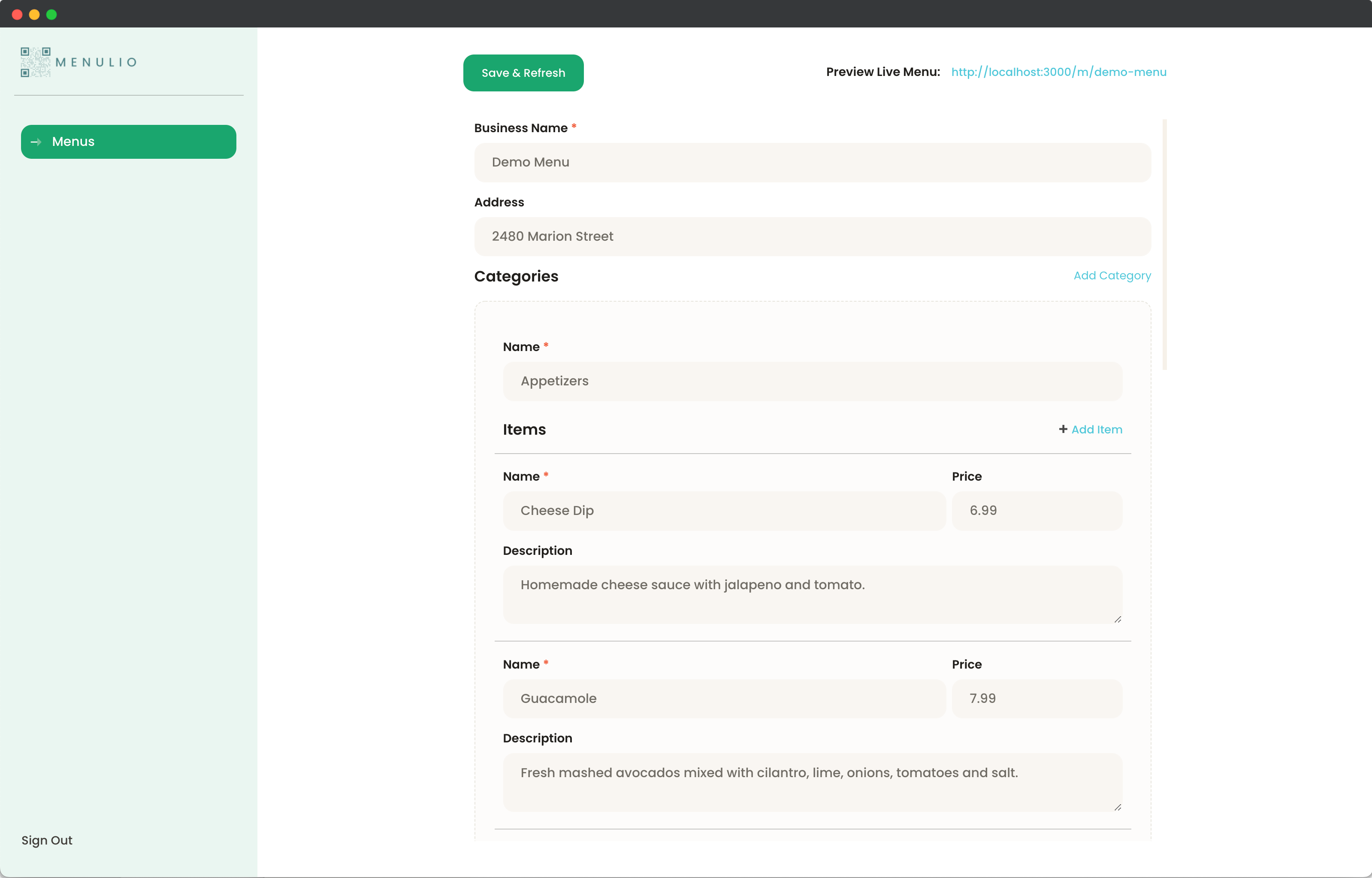
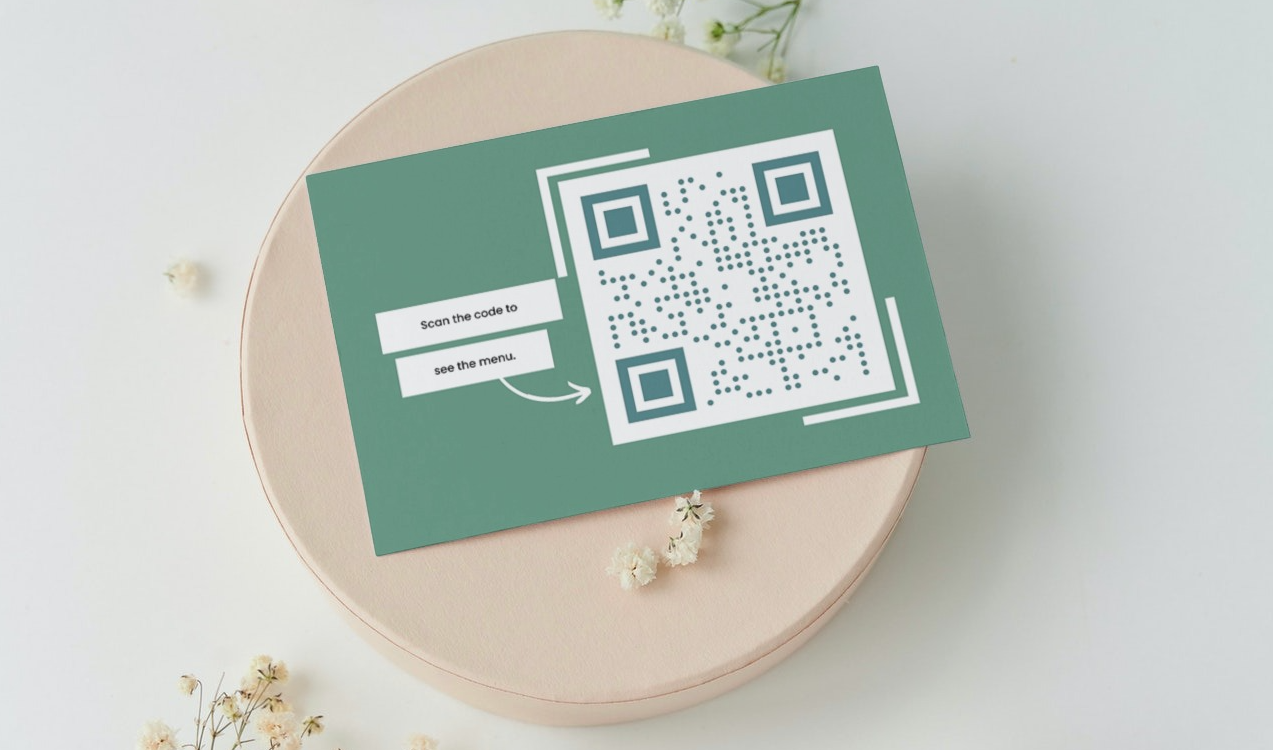
Put the QR code on tables, counters, printed menus, window signs, or food-truck boards. The code can stay in place while the menu changes behind it.
When an item sells out, a price changes, or a seasonal dish comes back, update it in Menulio. Guests refresh or scan again and see the current menu without installing an app.
See sold-out item controls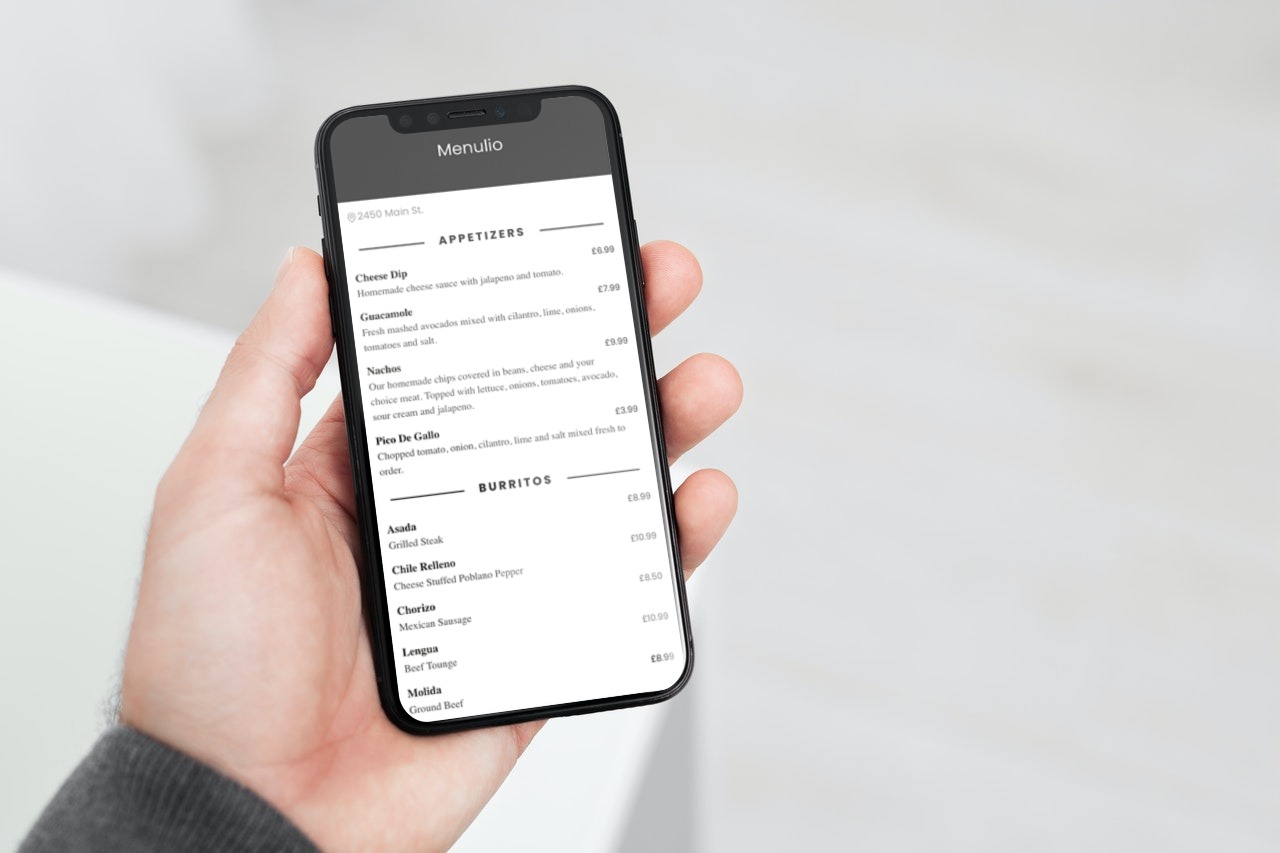
No. Guests scan the QR code with their phone camera and open the menu in the browser.
Yes. Edit the Menulio menu anytime while the printed QR code keeps pointing to the latest version.
You can add categories, items, prices, photos, descriptions, translations, ingredients, nutrition, and availability.
Menulio fits restaurants, cafes, bars, food trucks, tourist venues, and any operator that changes menus often.
Create the menu once, print the QR code, and update the live menu whenever service changes.